
Wavelog is a web application that allows logging of amateur radio contacts (QSLs). There is also a DX Watch feature which allows you to monitor multiple bands and multiple modes of communication (SSB, FT8, CW, etc.) along with rich reporting features. I’m hoping to later build notifications off of the DX Watch feature when a certain country or call sign is spotted and then I can try and “work” them.
The software will be installed in a docker container on a ZimaBoard 2, which is a single board computer (SBC). I added a 2TB M.2 SSD to my Zimaboard 2 as it only has 64GB of eMMC storage. You can find more info at the Wavelog Github site here. The modified YAML I used is below:
services:
wavelog-db:
image: 'mariadb:11.3'
container_name: wavelog-db
environment:
MARIADB_RANDOM_ROOT_PASSWORD: 'yes'
MARIADB_DATABASE: wavelog
MARIADB_USER: wavelog
MARIADB_PASSWORD: wavelog
volumes:
- '/media/nvme0n1/AppData/wavelog/dbdata:/var/lib/mysql'
ports:
- '3306:3306'
restart: unless-stopped
wavelog-main:
container_name: wavelog-main
image: 'ghcr.io/wavelog/wavelog:latest'
depends_on:
- wavelog-db
environment:
CI_ENV: docker
volumes:
- >-
/media/nvme0n1/AppData/wavelog/config:/var/www/html/application/config/docker
- '/media/nvme0n1/AppData/wavelog/uploads:/var/www/html/uploads'
- '/media/nvme0n1/AppData/wavelog/userdata:/var/www/html/userdata'
ports:
- '8086:80'
restart: unless-stopped
The volumes were remapped to point to the 2TB SSD instead of using the internal storage of the docker image which resides on the 64GB eMMC. You will want to change the password on the mariadb instance and the database port 3306 was mapped from the container to port 3306 on the Zimaboard 2.
When I started the stack and began the setup I was greeted with:
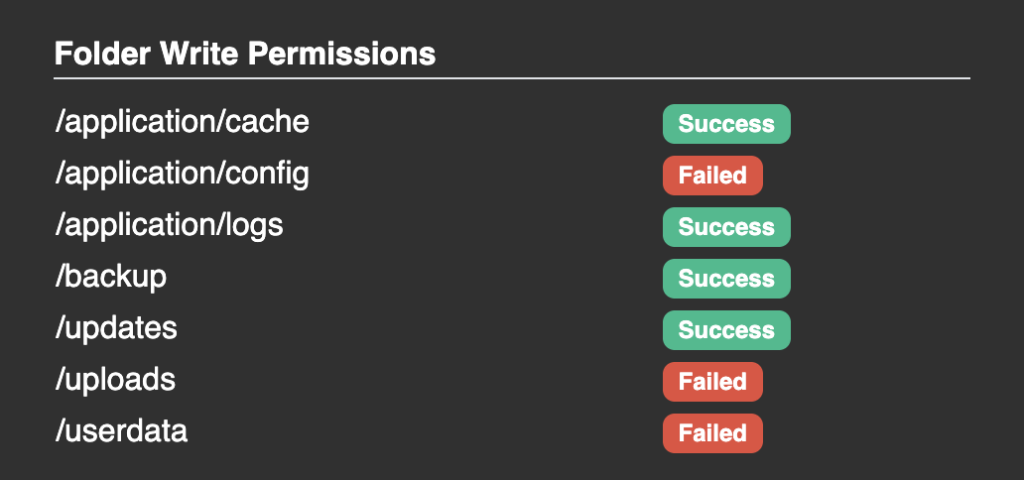
I fixed this by going into the Container Details and clicked on Console and then Connect.
The console opened in the /var/www/html directory and then I did the following:
chown -R www-data:www-data application/config
chown -R www-data:www-data application/logs
chown -R www-data:www-data uploads
chown -R www-data:www-data userdata
chmod -R 775 application/config
chmod -R 775 application/logs
chmod -R 775 uploads
chmod -R 775 userdata
Which resulted in:
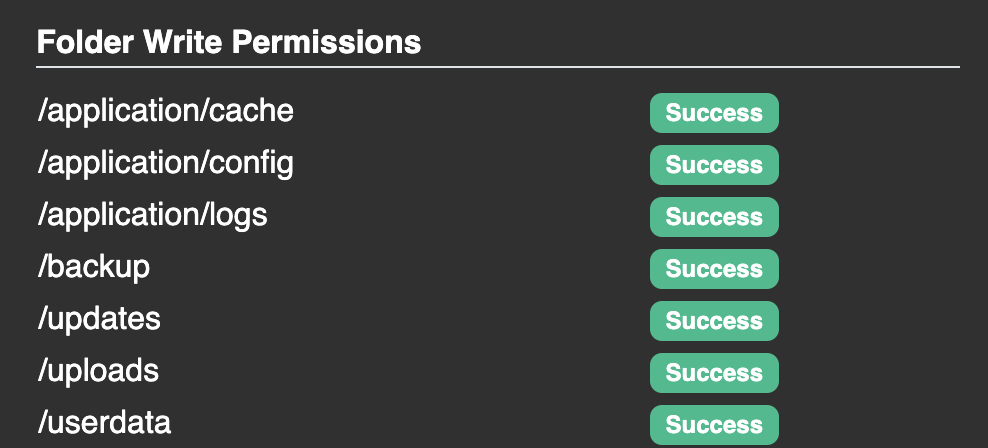
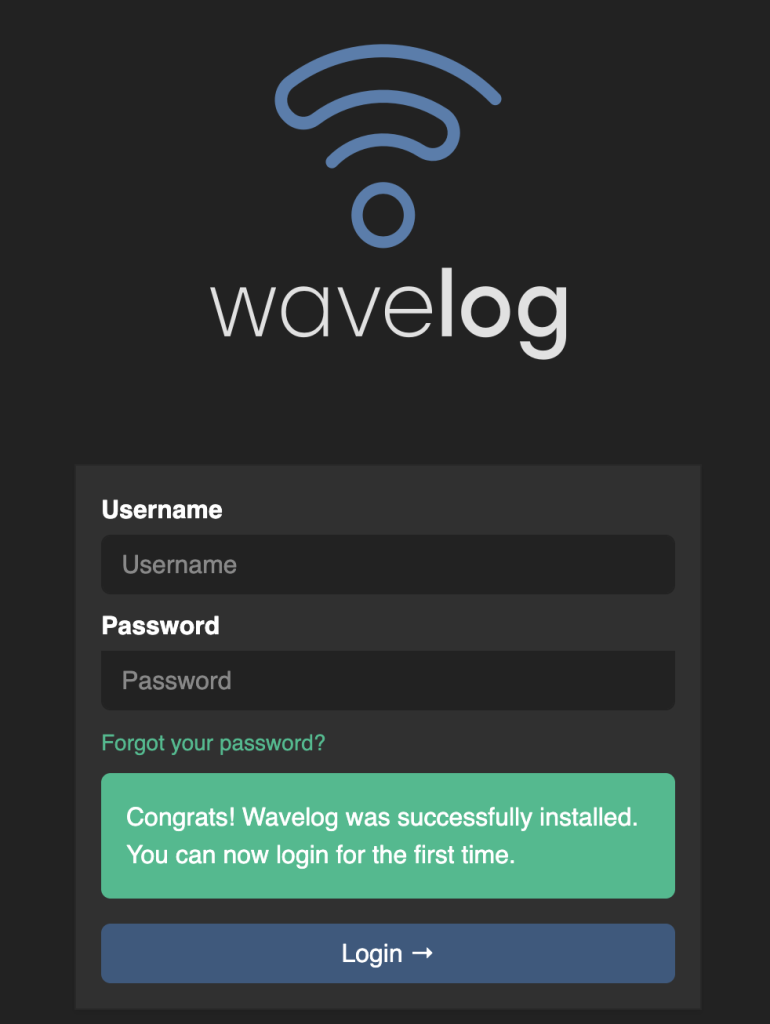
You can now continue with your installation and at the end, you can login:
The next post will be about using Wavelog.